B—OPSOFFSEC / EU
A useful security idea sometimes hides in a boring setting. In a 2021 thread, Nathan McNulty pointed out that a personal Microsoft account can use a dedicated alias for sign-in while removing sign-in from the public address people already know. More than five years later, that advice still holds. Push-fatigue attacks, modern phishing kits, and session theft have not made usernames any less useful to an attacker.
Most conversations about account security jump straight to passwords and MFA. They should. But an attacker also needs a username. If your public-facing email address is also the login name for a high-value Microsoft identity, you have already made their first step easier. And if you do create a dedicated sign-in alias, it is better if that username is random, dull, and not obviously tied to your name, company, or public brand.
The personal-account lesson
The practical click path was laid out clearly in Nathan McNulty's Microsoft-account alias thread, building on Mat Velloso's earlier note. Microsoft documents the underlying mechanism in Microsoft account aliases: add an alias, make it primary if needed, then limit sign-in to that dedicated alias.
This first half is about personal Microsoft accounts and other identities that are unusually public. It is not a design pattern for Entra work identities.
How to set it up
If you want to do this on a personal Microsoft account, the flow is short. The UI will drift a bit over time, but the path is usually the same.
The point is not to remove your public address from the account. The point is to stop accepting that public address as a valid sign-in name.
1. Start from Your info
Open your Microsoft account, go to Your info, and in the Account info block use the Sign-in preferences link.

2. Review the current sign-in alias
The Manage how you sign in to your account page shows the current primary alias and gives you the Add email option. This is also where you verify which alias is currently primary.
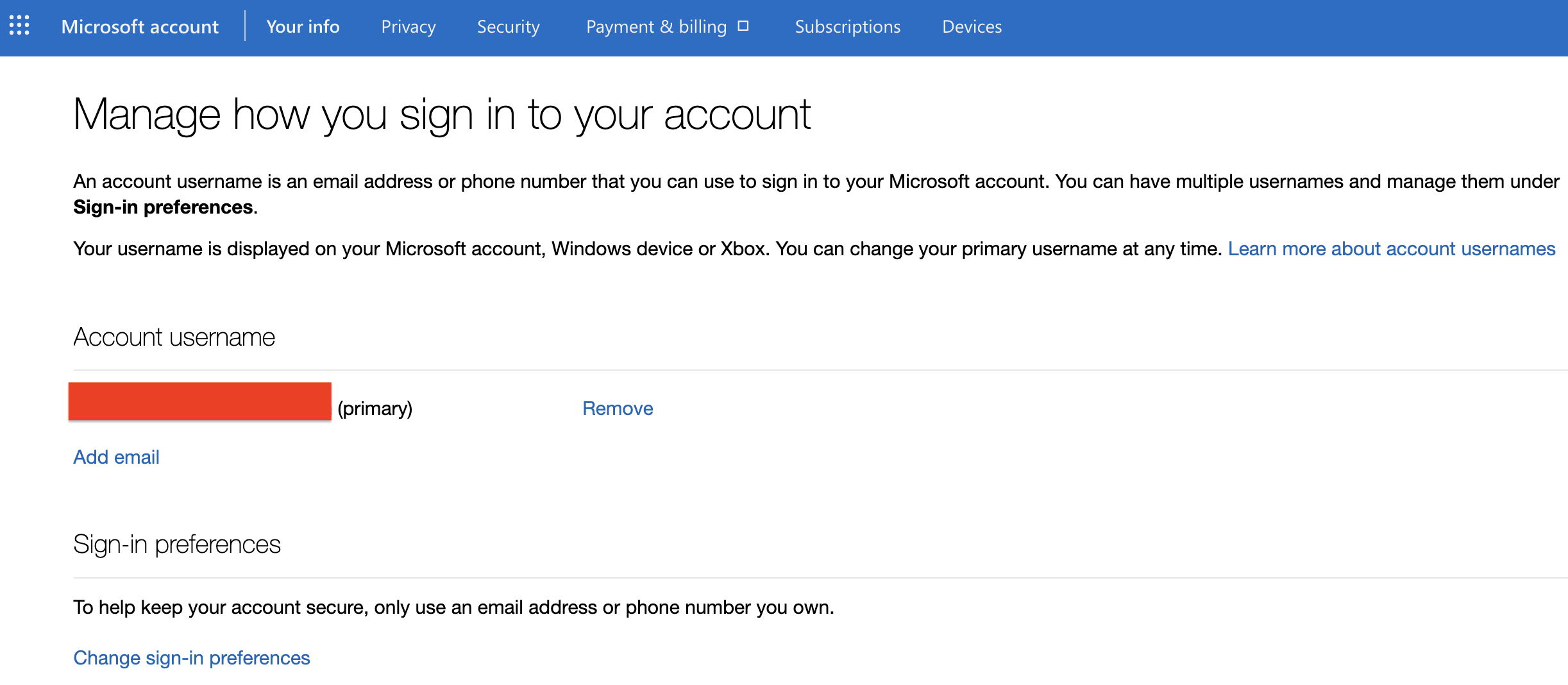
3. Add a new alias just for sign-in
Use Add email to create a new address. Keep it obscure, ideally fairly random, and do not reuse it anywhere public. The whole point is that this address should not appear on websites, mailing lists, or speaker bios.
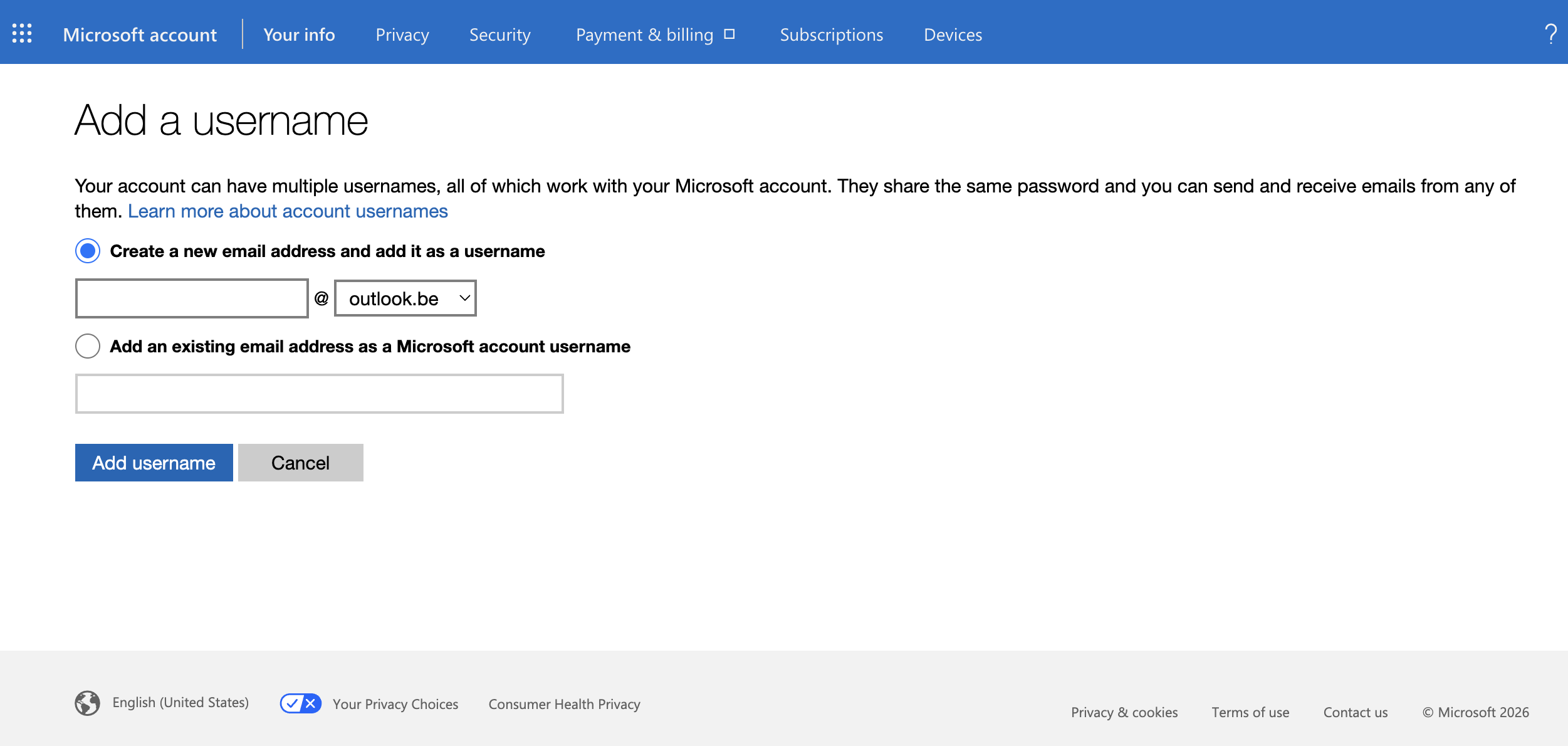
4. Restrict sign-in to that dedicated alias
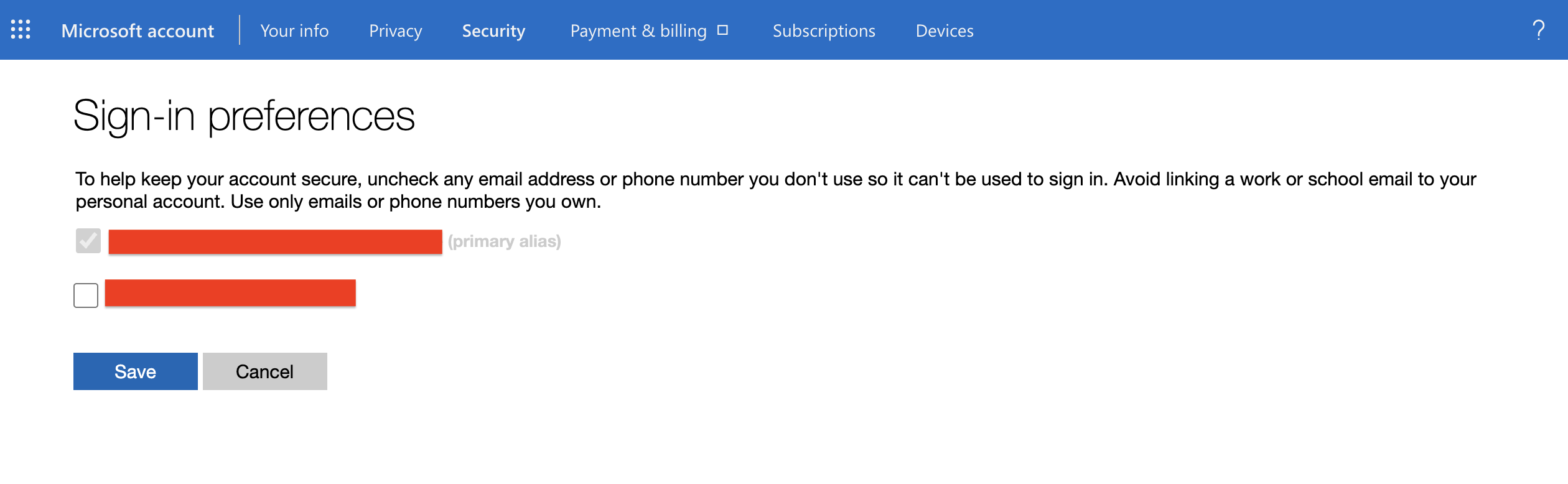
Go back to Sign-in preferences, keep the dedicated alias enabled for sign-in, and remove sign-in from the public one. On that page, review every other enabled sign-in identifier as well, including old aliases or a phone number. If one of those is public or guessable, it should not stay enabled as a login. Your public address can stay attached to the account if you still need it for email. It just should not be accepted as a login.
This does not replace MFA or a password manager. It removes needless exposure. Public email addresses live on websites, in signatures, in conference bios, in vendor contact lists, and in breach corpuses. If the same string is also the username for the account, the attacker does not even need to guess.
Protecting privileged accounts in the enterprise
This is where the parallel stops. The section above was about reducing username exposure on a personal or highly public Microsoft account. Protecting privileged accounts in the enterprise is a different problem. It is not about hiding a sign-in name. It is about controlling the access paths that lead to administrative power.
That is exactly why the Microsoft enterprise access model matters. Microsoft describes a modern environment in terms of at least a control plane, a management plane, and a data/workload plane. If an attacker takes control of a higher plane, they can usually direct what happens below it. That is why privileged pathways have to be treated differently from ordinary user access.
The privileged access strategy starts from the same reality: there is no single control that fixes privileged access risk. What you protect is the full path between the account, the device, any intermediary, the role itself, and the sensitive system being reached.
Executives and executive assistants can still be high-value identities, especially when they sit close to approvals, delegated access, or confidential information. But that is not automatically the same thing as an Entra administrator account, a control-plane role, or an account that can change recovery paths. Those categories sometimes overlap. They should not be treated as if they were identical.
What that means in practice for privileged accounts
The credible minimum is still familiar, but it has to be enforced consistently. Microsoft recommends separating administrator accounts from standard user accounts in Active Directory accounts. In practice, that means the privileged account should not be the same account used for daily mail, open web browsing, or ordinary productivity work.
Just as important, a powerful role should not stay permanently active if it is only needed from time to time. Microsoft Entra Privileged Identity Management (PIM) gives you the mechanics for that: make the role eligible, require activation, and add the controls that fit the risk such as MFA, approval, justification, and short time limits. That is what JIT should mean in practice. Not just fewer admins, but less standing privilege.
Those accounts should also land only on clean administrative devices. Microsoft explicitly documents requiring compliant or hybrid joined devices in Require compliant device or Microsoft Entra hybrid joined device for administrators. With Filters for devices in Conditional Access, you can go further and allow only a closed administrative device group through.
For Entra administrator roles, Microsoft also pushes toward phishing-resistant MFA in Require phishing-resistant multifactor authentication for Microsoft Entra administrator roles. That detail matters because an admin account on a clean device is still a high-value path if it remains vulnerable to phishing or session theft.
In executive terms, the message becomes four controls: a separate admin account, a separate admin device, strong phishing-resistant authentication, and explicit handling of emergency or break-glass accounts. Less elegant than an alias trick, but exactly the difference between a sensitive account and a defensible privileged path.
And if you still run on-prem AD
In hybrid environments, Authentication Policies and Authentication Policy Silos are still useful for answering a simple question: where is this account actually allowed to authenticate? If privileged paths still run through on-premises systems, they have to be closed there as well.
One caveat matters here: this is not a harmless AD label. It is a control built around Kerberos behaviour, and it is often paired with protected-account patterns. If your admin workflows still depend on NTLM, default credential delegation, or legacy assumptions in services and workstations, some of those flows will break. That is exactly why the audit phase matters before you enforce it.
In practice, that means creating a dedicated silo for your highest-privilege accounts, assigning only the relevant admins, hardened admin workstations, and any service accounts that truly belong in that boundary, and then defining which devices those accounts are allowed to sign in from and which systems they are allowed to authenticate to with Kerberos. For identity or control-plane accounts, that list should usually be very short: admin workstations, jump hosts, and a narrow set of domain controllers or management servers.
Microsoft also supports running the policy in audit mode before enforcement. That sequence matters. Start by seeing which existing flows would break, clean those up, and then enforce the restriction. Otherwise the silo stays a tidy AD object instead of becoming a real control on where privileged credentials can be used.
What you can do next
- If you manage a personal Microsoft account or a highly public account, remove the public email address from the list of accepted sign-in identifiers and replace it with a discreet, ideally random alias.
- If you oversee privileged accounts, check that the basics are actually in place: a separate admin account, a dedicated admin device, phishing-resistant MFA, and just-in-time activation through PIM.
- If your environment is still hybrid, ask explicitly where those credentials are still allowed to authenticate today. That is often where old paths stay open longer than anyone thinks.
- And if nobody can give you a clear answer, that is already a useful answer. It usually means the subject still lacks ownership, priority, or real enforcement.
The point is not to throw everything under the label of "important identities." It is to separate two different problems cleanly. For a personal or highly public account, you want to reduce exposure of the login name. For a privileged enterprise account, you want to protect a high-consequence access path.
If you want to test whether sensitive identities in your environment are actually separated, restricted, and defensible, get in touch.